










 Call
Call 


 Access Your Account
 WiFi Connected But No Internet: What It Means and How to Fix It

Table of Contents
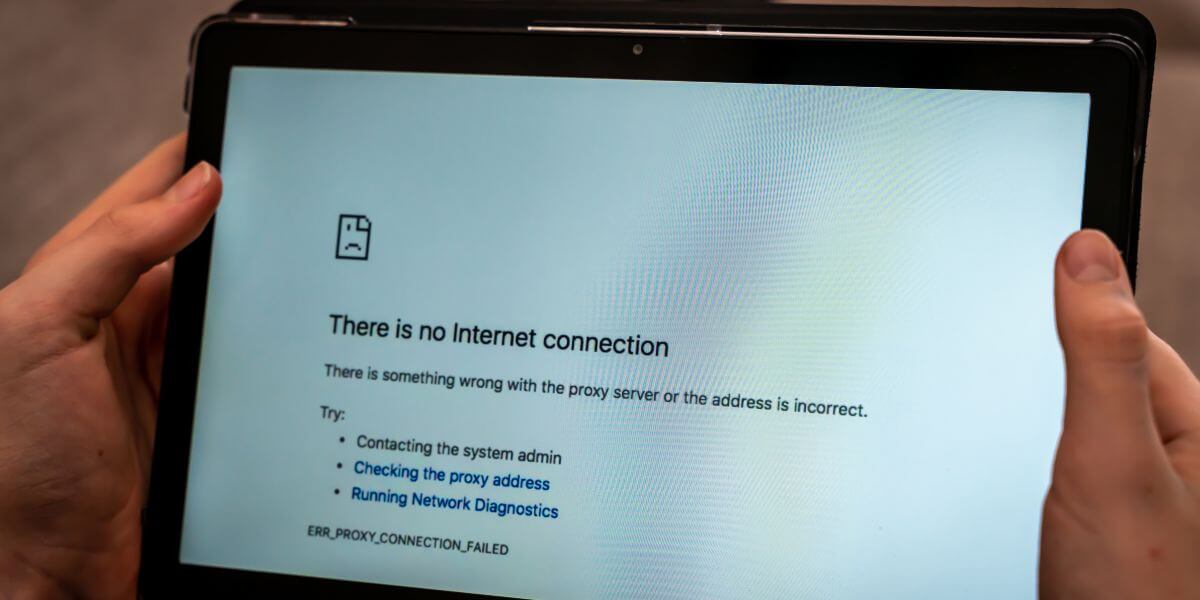
Your device shows full WiFi bars, the network name is right there in your settings, and yet… nothing is loading for you. No emails, no web pages, no streaming. Being WiFi-connected but with no internet is one of the most common home networking complaints, and it’s a different problem than a connection that just keeps dropping. Your device isn’t losing its link to the router, it has one. Somewhere further down the chain, between that local link and the wider internet, something is broken, and the fix depends entirely on where.
The good news is you don’t need to guess. A short diagnostic sequence can tell you within a couple of minutes whether the issue lives on your device, your router or modem, or your provider’s network… and each has its own fix.
[search_block]
Why Does WiFi Say No Internet When You’re Connected?
A home network is a chain of handoffs. Your phone or laptop talks to the router over WiFi, the router talks to the modem, and the modem talks to your internet provider, which routes the request out to the wider internet. Connected with no internet access simply means the first link in that chain—device to router—is working, but a later link isn’t. That’s why it’s worth treating separately from a connection that repeatedly disconnects, which is usually a signal or interference problem rather than a break further downstream.
It’s also a more common headache than it used to be. The average U.S. household now runs around 21 connected devices across roughly a dozen categories, from phones and laptops to smart speakers and doorbell cameras [1]. Every one of those devices depends on the same router, modem, and DHCP process to get online, so a single misconfigured setting or an outage on your provider’s end can affect one gadget or all of them at once.
Is It Every Device, or Just One?
This single question does most of the diagnostic work. It’s worth checking before you try anything else:
- Every device shows connected, but no internet. The problem is your router, modem, or your ISP’s network. Fixing the individual device won’t help.
- Only one device is affected, while phones, laptops, and smart TVs on the same network browse normally. The problem lives in that device’s network configuration, not the network itself.
Router Connected, But No Internet? Fix the Whole Network First
If every device on the network is affected, start with your equipment and your provider rather than any single gadget.
Restart the modem and router in the correct order: unplug the modem first, wait about 60 seconds, then plug it back in and let it fully reconnect before restarting the router. Restarting them together, or restarting the router first, can leave the modem trying to re-establish its connection before it’s finished talking to your ISP.
While that’s happening, check for an outage using your phone’s cellular data rather than WiFi. Most major providers publish outage status through their app or support site, and searching your ISP’s name plus “outage" usually surfaces other affected customers nearby within minutes. Finally, check that every cable—coaxial, fiber, or Ethernet—is fully seated at both the wall and the modem. A half-connected cable produces this exact symptom.
Connected to WiFi, But Can’t Browse on One Device? Reset Its Settings
When only one device is affected, work through its network settings instead of the router.
Start by forgetting the WiFi network on that device and rejoining it, which forces it to request a fresh connection instead of reusing a saved (and possibly broken) configuration. If that doesn’t help, release and renew the device’s IP address and clear its DNS cache. On Windows 11 or 10, open Command Prompt and run the release, renew, and flush commands in sequence [2]:
- ipconfig /release
- ipconfig /renew
- ipconfig /flushdns
On a Mac, open Terminal and run [3]:
- sudo dscacheutil -flushcache; sudo killall -HUP mDNSResponder
If the device still won’t get online, try switching it from the router’s 2.4 GHz band to the 5 GHz band (or vice versa) in your WiFi settings. The FCC recommends this same swap as a general fix for shaky in-home connectivity, since congestion on one band doesn’t affect the other [4].
What Is an IP Address Conflict, and How Do You Fix It?
An IP address conflict with no internet error happens when two devices on the same network are assigned the same local IP address, which confuses the router and can trigger a no internet access Windows 11 warning even though the WiFi link looks fine. It’s more common after a device wakes from sleep or reconnects quickly after a network change. The release-and-renew commands above usually resolve it, but if the conflict keeps coming back, restarting the router clears its entire list of assigned addresses and forces every device to check in fresh.

What Does “DNS Not Resolving" Mean?
DNS is the system that translates a web address you type into the numeric IP address your device actually needs. It’s often described as the internet’s phonebook [5]. When DNS isn’t resolving, your device has a working internet connection, but can’t look up where a site lives, so pages fail to load even though the connection itself is fine. That’s exactly what the ipconfig /flushdns and dscacheutil -flushcache commands above are for. They can clear out stored, possibly outdated DNS results so your device requests fresh ones.
Phone Says Connected, But No Internet? Fixes for Android and iPhone
The WiFi connected no internet Android error often comes with a “no internet, secured" label under the network name—that’s Android flagging a DNS or captive-portal problem, not the WiFi radio itself. Forget the network under Settings > Network & Internet > Internet, rejoin it, and toggle Airplane Mode on and off to force a fresh connection if the issue persists.
On iPhone, WiFi connected no internet iPhone issues are usually fixed the same way: go to Settings > Wi-Fi, tap the ⓘ next to the network, and choose “Forget This Network" before rejoining. If your phone says connected, but there’s no internet on that one network only, also check whether Private WiFi Address is toggled on. Turning it off can resolve conflicts on routers with strict device-limit settings.
Still Stuck? Compare Internet Providers and Plans in Your Area
If you’ve worked through both paths and an outage or equipment failure on your provider’s end is the culprit, there’s not much more troubleshooting can do. The fix is on their side, and it’s worth asking about service credits for the downtime. But if this kind of trouble happens often, or your provider is slow to resolve outages, it may be a sign to look elsewhere.
CompareInternet’s comparison tool makes it easy to check out other internet providers and compare internet plans side by side, so you can see the best internet providers, current internet prices, and the best internet in your area before you commit to another year of service. A few minutes spent on an internet comparison now can save you a repeat of this exact troubleshooting the next time your current provider has a bad day. Use the zip code tool below to see what might be available in your area.
[search_block]
FAQs
Why does my WiFi say connected, but there’s no internet access?
Your device has successfully linked to the router, but something further along the chain—the router, the modem, or your ISP’s network—isn’t passing traffic through. The WiFi connection and your actual internet access are two separate things, which is why the network can show as “connected" while nothing loads.
How do I fix no internet access on Windows 11?
Open Command Prompt and run ipconfig /release, then ipconfig /renew, then ipconfig /flushdns to request a fresh IP address and clear any outdated DNS entries. If that doesn’t help, forget and rejoin the WiFi network, or try switching between the router’s 2.4 GHz and 5 GHz bands.
Why does my phone say connected to WiFi, but there’s no internet?
This is usually a DNS or IP configuration issue specific to that device rather than the network itself, especially if other devices are browsing normally. Forgetting and rejoining the network from your phone’s WiFi settings resolves most cases.
How do I know if the problem is my router or my ISP?
Check whether every device on the network is affected or just one. If everything is down, restart your modem and router in sequence and check your provider’s outage status using your phone’s cellular data; if only one device is affected, the fix is in that device’s network settings, not your provider’s network.
Sources
[1] ConsumerAffairs. “Average Number of Smart Devices in a Home 2026."
[2] Microsoft Learn. “Ipconfig."
[3] IPServerOne Knowledge Base. “How to Flush DNS Cache on macOS."
[4] Federal Communications Commission. “Home Network Tips."
[5] Cloudflare. “What Is DNS?"