











 Call
Call 


 Access Your Account
 Setting Up a Guest WiFi Network: Security Benefits and How-To Guide
Table of Contents
It’s common for visitors to request access to your WiFi. Whether it’s a friend streaming videos, a relative catching up on emails, or even a service technician checking technical tools, granting access to your main home network can expose your personal devices and sensitive data to potential risks. Visitors connected to your primary network can unintentionally access shared files, printers, or even open the door to malware if their devices are compromised. That’s why setting up a guest WiFi network is a smart, simple, and highly effective security upgrade for any household.
A guest WiFi network operates as a separate connection, isolating your personal devices and data from any devices connected by visitors. It ensures that your primary network stays secure while still offering a convenient way for guests to get online.
This guide will walk you through the key security benefits of using a guest WiFi network and provide a detailed, step-by-step tutorial on how to set one up. Whether you’re tech-savvy or a complete beginner, you’ll find that creating a guest network is easier than you think and an essential step toward a safer, more secure digital environment in your home.
Why You Should Set Up a Guest WiFi Network
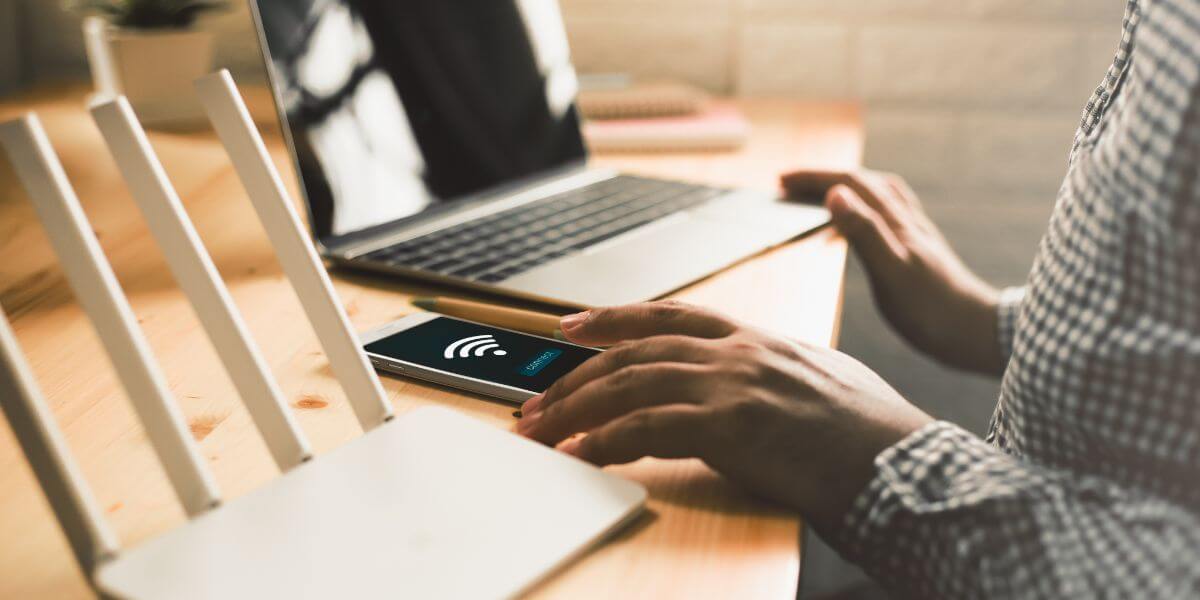
Set up a safe guest network
Giving out your main WiFi password might seem harmless, but doing so creates several potential risks:
1. Protect Your Devices and Personal Data
When someone connects to your main WiFi network, they may inadvertently gain access to connected devices like your laptop, smart TV, printers, and even home security systems. This access increases the risk of accidental exposure or malicious intent, especially if their device is compromised.
2. Reduce Risk from Malware-Infected Devices
Even if you trust your guests, you can’t always be sure their devices are secure. A single malware-infected smartphone or laptop can spread viruses to other devices on the same network.
3. Isolate Smart Home (IoT) Devices
Smart thermostats, light bulbs, doorbell cameras, and other IoT gadgets usually aren’t as secure as your PC or phone [1]. Keeping these devices off your main network—or keeping guests off the same network as your smart home devices—can give you an extra layer of protection.
4. Bandwidth Management
A guest WiFi network lets you control or limit how much bandwidth your visitors use, so your streaming, gaming, or video conferencing remains uninterrupted.
5. Professionalism for Home Businesses
If you run a home office or operate an Airbnb, providing a guest WiFi network is a professional touch that keeps your business devices and sensitive files safe.
Step-by-Step Guide: Setting Up a Guest Network
Setting up a guest WiFi network typically takes less than 15 minutes. There are two primary methods: using your router’s admin dashboard or an ISP-provided mobile app.
Method 1: Using Your Router’s Admin Settings
Most routers allow you to create a guest network through the admin interface.
Step 1: Find Your Router’s IP Address
- On Windows: Press “Windows + R,” type “CMD,” then enter “ipconfig.” Look for “Default Gateway".
- On Mac: Go to System Settings > Wi-Fi > Details and find the “Router" address.
Step 2: Access the Admin Dashboard
Open a browser and enter your router’s IP address in the address bar. Log in with your admin credentials. (These are often printed on a sticker on the router.)
Step 3: Enable Guest Network
Once logged in, navigate to the Wireless Settings or Guest Network section. Look for an option to enable the guest network.
Step 4: Configure the Network
- Name (SSID): Choose something distinct (e.g., “Smith Guest WiFi")
- Security Type: Choose WPA2 or WPA3 if available
- Password: Set a strong, unique password
- Access Restrictions: Disable guest access to local network resources (important!)
Step 5: Save and Test
Click “Apply" or “Save", then test the guest WiFi network using a separate device.
Method 2: Using a Router or ISP App
Many modern routers and ISPs offer apps that let you manage settings without needing to log in via browser.
Open your provider’s app, locate the WiFi or Network Settings section, and look for the Guest Network option. The steps are usually similar: name the network, set a password, apply settings. Some apps even let you:
- Print or display a QR code for easy sharing
- Schedule guest network hours
- Monitor connected guest devices
Best Practices for Managing Your Guest WiFi Network
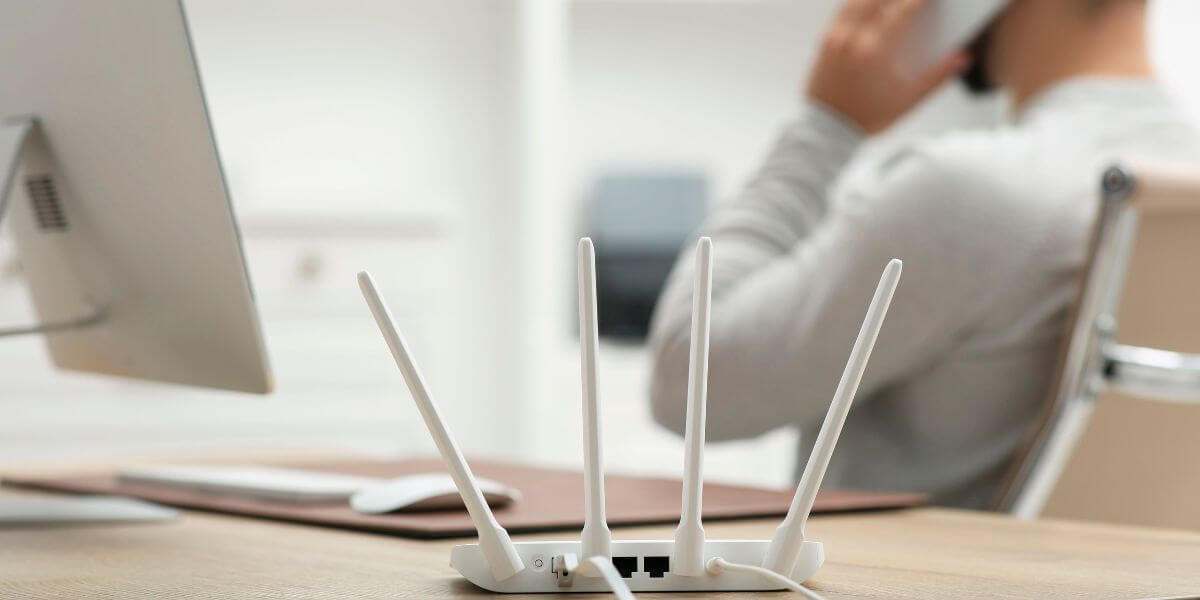
Stay secure
Once you have your guest WiFi network up and running, consider these tips to keep it secure and efficient:
Use a Unique SSID and Password
Avoid using the same SSID or password as your main network. This helps clearly separate guest access.
Turn Off Guest Network When Not Needed
If you rarely have guests, consider turning off the guest network until it’s needed.
Limit Bandwidth (If Available)
Advanced routers let you throttle bandwidth for the guest network. This ensures your guests don’t hog the internet during their stay [2].
Monitor Connected Devices
Use your router’s interface or app to see who is connected. If unfamiliar devices appear, change the password immediately.
No Local Network Access
Be sure the guest network does not allow access to local network resources. This setting makes sure guests can’t reach your file shares, printers, or smart home devices.
What If My Router Doesn’t Support Guest Networks?
Older or basic routers may not include a guest WiFi feature. In that case, you have a few options:
- Upgrade your router: Look for a model with guest network support and WPA3 encryption.
- Use a secondary router: Set up an old router as a dedicated guest access point.
- Use a mesh network: Systems like Google Nest WiFi or Eero offer intuitive guest network features via their apps.
Security Tips to Maximize Guest Network Benefits
Setting up a guest network is a fantastic start, but to fully secure your home, go a little further:
- Keep firmware updated: Router manufacturers release updates to patch vulnerabilities.
- Use strong passwords: Avoid common words or dates.
- Enable encryption: Choose WPA2 or WPA3, not WEP.
- Separate IoT devices: Consider connecting smart devices to the guest network instead of the main one.
A Simple Step Toward Safer WiFi
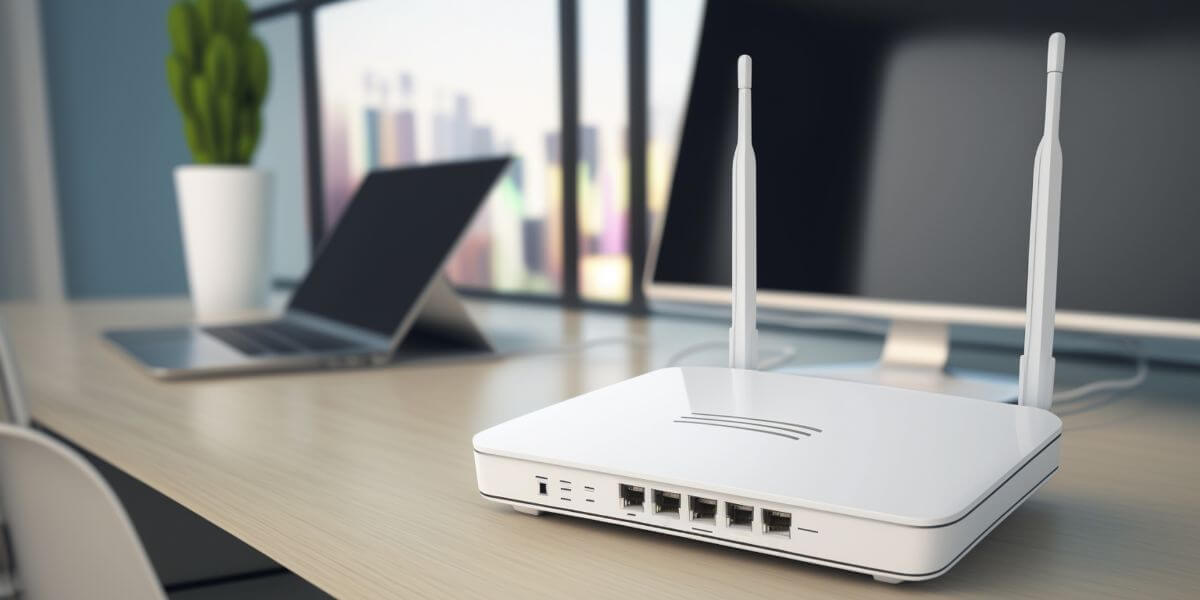
Keep you (and your guests) safe
Setting up a guest WiFi network is one of the easiest and most effective ways to improve your home’s digital security. It keeps your private devices safe, protects against malware, and gives you more control over how your internet is used.
If you’re using an outdated router or struggling with poor network performance, it might be time for a fresh start.
Frequently Asked Questions (FAQs)
Is a guest WiFi network slower?
Not necessarily. However, bandwidth is shared across all devices. Too many connected users may slow things down.
Can I set parental controls on a guest network?
Yes, but it depends on your router. Some apps and routers allow you to manage all devices, regardless of the network.
Will my guests see my files or printers?
No, if configured correctly. Ensure “Access to local network" is disabled.
Can I set time limits for guest access?
Many routers let you schedule access times, ideal for kids, guests, or Airbnb stays.
Sources
[1] Microsoft. “Be safer with smart devices."
[2] TP-Link. “How do I set up Bandwidth Control and Effective Time for my guest network?"