










 Call
Call 


 Access Your Account
 Why Your Modem and Router Lights Are Blinking
Table of Contents
Those blinking lights on your modem and router aren’t just there to look pretty. They’re actually telling you a story about your internet connection. And knowing the Modem router lights meaning can save you hours of troubleshooting frustration and help you diagnose problems before they completely knock you offline.
Home networking equipment has evolved significantly, even over the past decade. What used to be simple, single-light modems have transformed into sophisticated devices with multiple LED indicators, each communicating specific information about your connection status. Whether you’re dealing with a standalone modem, a router, an optical network terminal (ONT) for fiber internet, or an all-in-one gateway device, learning to read these lights is like understanding your equipment’s language.
[search_block]
Modem router lights meaning — Understanding the Basics
Your modem’s router light meanings comes down to three main factors: the light’s color, whether it’s blinking or solid, and the speed of the blinking [1]. Each networking device manufacturer may use slightly different patterns, but most follow similar conventions that have become industry standards since the mid-2010s.
- Green or white lights typically indicate normal operation. When your equipment is working properly, you’ll usually see solid or gently blinking green or white lights across most indicators.
- Yellow or amber lights generally signal a transitional state. Your device might be starting up, updating firmware, or experiencing a minor connection issue that it’s trying to resolve.
- Red or orange lights are your warning signals. These colors almost always indicate a problem that needs attention, from connection failures to hardware malfunctions.
- Blue lights are kind of the wild card. Depending on your device, blue might indicate Bluetooth pairing mode, an active internet connection, or simply be the manufacturer’s standard color choice for all indicators.
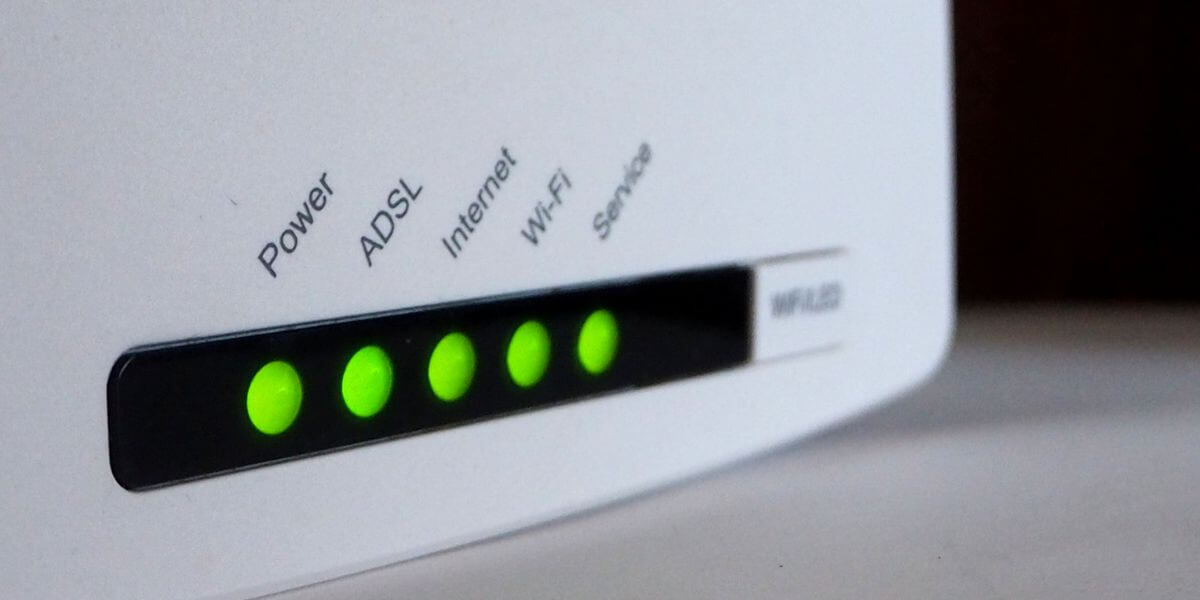
Router Lights Explained: Blinking Patterns Matter
The pattern of blinking tells you just as much as the color. Here’s how to interpret what you’re seeing:
Slow, steady blinking usually means your equipment is trying to establish a connection. When you first power up your modem or router, it’s normal to see each light blink slowly for a few minutes. This is basically the device working through its startup sequence and attempting to establish whatever connection that particular light represents. If a light continues this slow, rhythmic blinking for more than 15-20 minutes, that’s typically a sign something’s wrong with that specific function.
Rapid, sporadic blinking is usually good news! This fast, irregular blinking pattern typically indicates active data transmission. When you see your Wi-Fi or Ethernet lights flickering rapidly, it means those connections are in use and transmitting data packets back and forth (exactly what they should be doing).
Modem Lights: A Complete Breakdown
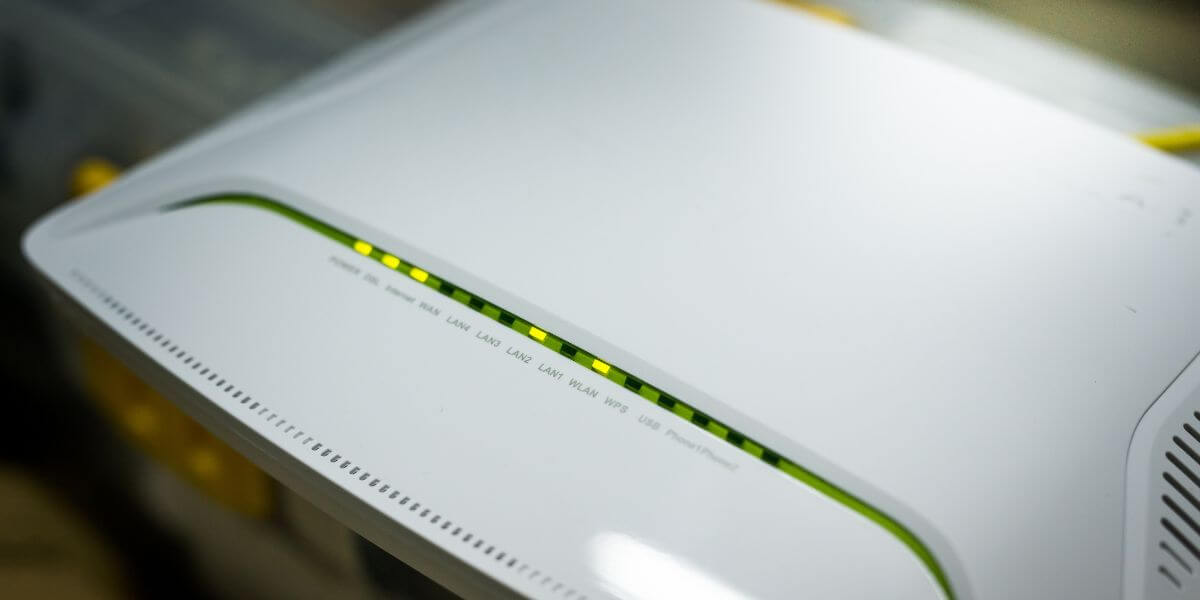
Each individual light helps you pinpoint exactly where problems occur. Here’s what each indicator on your modem, router, or gateway actually monitors:
Power Light
The power light does exactly what you’d expect. It confirms your device is receiving electricity. This light should be solid green or white. If it’s off, check that the power cable is securely connected and that the outlet is working. Some devices blink the power light during startup or firmware updates.
Downstream Light
Found on cable and DSL modems, the downstream light [2] (often marked with a down arrow or “DS") shows your device’s ability to receive data from your internet provider. This light blinks slowly during startup, then either stays solid or blinks rapidly during normal use when you’re downloading information. A red or unlit downstream indicator suggests your modem can’t communicate with your provider’s network.
Upstream Light
The upstream light (marked with an up arrow or “US") is the opposite of downstream [3]. It indicates your ability to send data back to the internet. Like the downstream light, it should be solid or blinking rapidly during normal operation. Problems with upstream connectivity often manifest as being able to browse websites but having trouble with video calls, uploading files, or gaming.
Internet/WAN Light
The internet light is one of the most important indicators on your equipment. Also labeled as WAN (Wide Area Network) or PON (Passive Optical Network) on fiber equipment, this light confirms you have an active internet connection. When solid green or white, you’re connected to the internet. If it’s red, blinking slowly, or off, your device can’t establish an internet connection even if other lights look normal.
Wi-Fi Lights
Routers and gateways often have separate lights for different Wi-Fi bands — 2.4 GHz, 5 GHz, and sometimes 6 GHz on Wi-Fi 6E equipment. These lights confirm your wireless networks are broadcasting. Rapid blinking indicates active wireless data transmission. Dual-band routers became standard in home networking around 2014 [4], which is why many devices from that era onward feature multiple Wi-Fi indicators.
Ethernet/LAN Light
Each physical Ethernet port on your router typically has its own indicator light, or there may be one combined LAN light. These lights confirm wired connections to computers, gaming consoles, smart TVs, or other devices. They should be solid or blinking when a device is connected and communicating through that port.
WPS Light
Wi-Fi Protected Setup (WPS) was introduced in 2007 [5] to simplify connecting devices to your wireless network. The WPS light activates when you press the WPS button to pair a device, allowing it to connect without entering your password. While convenient, security experts have identified vulnerabilities in WPS, and many recommend disabling this feature when not actively pairing devices.
Link/Data Light
If you have a separate modem and router, the link or data light shows the connection between these two devices. This light should be solid or blinking during normal operation. If it’s red or off, there’s a problem with the Ethernet cable connecting your modem to your router.
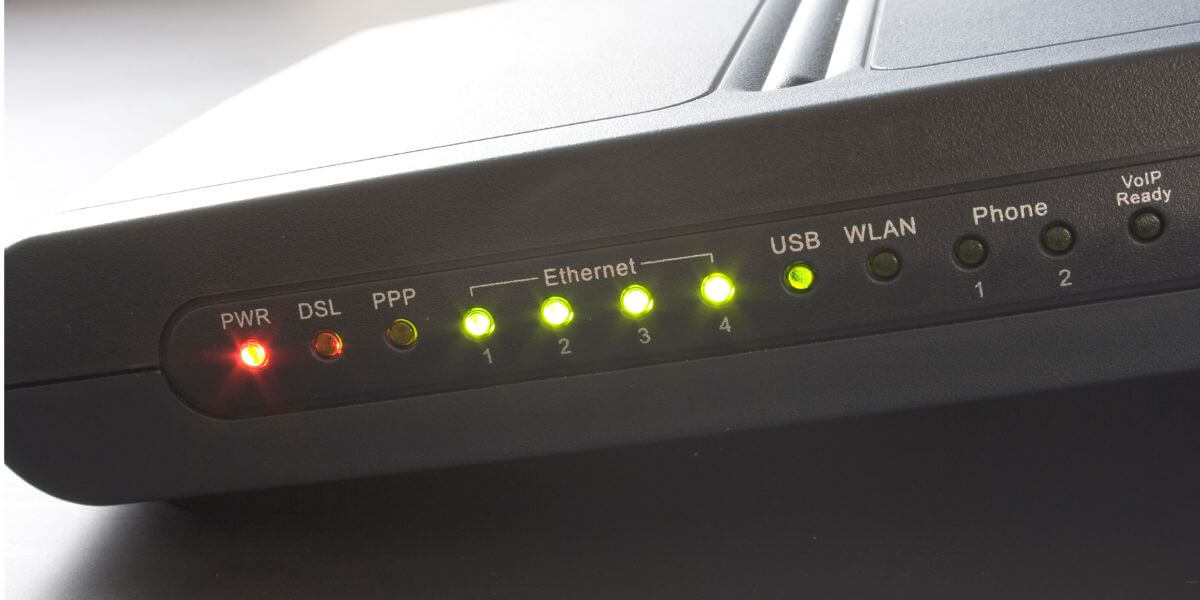
What Do Router Lights Mean When There’s a Problem?
When indicator lights show problems, here’s your troubleshooting priority list:
- Start with a simple restart. Unplug your modem, router, or gateway from power, wait 60 seconds, then plug it back in. This resolves approximately 60-70% of common connection issues, according to network equipment manufacturers. Allow several minutes for the device to fully reboot—some equipment needs to download firmware updates during startup.
- Check all cable connections next. Make sure coaxial cables are hand-tight on cable modems, Ethernet cables are fully clicked into place, and fiber connections are properly seated. Damaged cables with cuts, kinks, or pet chew marks need replacement.
If problems persist after these basic steps, it’s time to contact your internet provider. Issues with red or unlit downstream, upstream, or internet lights often indicate problems on the provider’s end that require a service call.
Should You Upgrade Your Equipment?
Networking technology advances rapidly. If your modem or router is more than five years old, you might benefit from upgrading to equipment that supports current standards like DOCSIS 3.1 for cable internet or Wi-Fi 6 for wireless connectivity. Older equipment can bottleneck your connection speed even if you’re paying for faster internet.
When considering upgrades, it’s worth exploring whether you’re getting the best value from your current service. The best internet providers in your area might offer better speeds, pricing, or equipment options than what you currently have. Taking time to compare internet providers can reveal significant savings or performance improvements.
Use internet comparison tools to evaluate what’s available at your address. Many people discover they can get faster speeds for less money by switching providers. When you compare internet plans side by side, pay attention to factors beyond just advertised speeds — equipment fees, contract terms, and customer service quality all impact your overall experience.
The best internet in your area depends on your specific needs. Fiber optic internet offers the fastest and most reliable connections but isn’t available everywhere. Cable internet provides good speeds in most locations, while DSL and fixed wireless serve as alternatives where other options aren’t available. Internet prices vary significantly by location and provider, so checking what’s available at your specific address gives you accurate information for comparison.
Frequently Asked Questions
Is it normal for my router lights to blink constantly?
Yes, rapid blinking on Wi-Fi and Ethernet lights is completely normal. It indicates active data transmission. However, slow, steady blinking that continues for more than 20 minutes usually signals a connection problem that needs attention.
What does it mean when my modem internet light is red?
A red internet light means your modem cannot establish a connection to your internet provider’s network. Try restarting your modem first. If the light stays red, contact your internet provider as the issue is likely on their end or with your account.
Should I worry about the WPS light blinking on my router?
A blinking WPS light indicates your router is in pairing mode, ready to connect new devices. If you didn’t press the WPS button recently, this could indicate unauthorized access attempts. For security, consider disabling WPS in your router settings when you’re not actively connecting devices.
How long should it take for modem lights to stabilize after a restart?
Most modems and routers complete their startup sequence in 3-5 minutes. However, some devices need up to 10 minutes, especially if they’re downloading firmware updates. If lights are still showing connection problems after 20 minutes, there’s likely an issue that requires troubleshooting.
Sources
[1] Broadband Search. “Modem and Router Lights Meaning: Easy Troubleshooting Guide.”
[2] Netgear. “Downstream light keeps blinking.”
[3] Motorola. “Why are my Upstream and Downstream lights green and then blue?”
[4] HowStuffWorks. “What is WiFi and How Does it Work?”
[5] PCMag. “Wi-Fi Protected Setup.”