










 Call
Call 


 Access Your Account
 How to Record TV Shows Without a DVR

Table of Contents
Since 1999, people have been using DVRs to record their favorite TV shows so they can watch them later. DVRs were first invented to capture shows and sports on broadcast TV. Back then, most shows were live, and you missed them if you weren’t home at the right time. Now, streaming TV has completely changed the way we watch our video programming.
Streaming services make it possible for you to watch TV anytime through a mobile device. There are no limits to when you watch your favorite TV show if you are streaming. Lots of streaming channels keep their content archived in entire seasons so you can order it up with one click.
All you need to stream video content is a reasonably fast internet connection.
But what if you want to record live TV (or livestreams online) that only happen at a specific time of day or night? Or maybe you want a downloaded recording that you can watch anytime offline.
If you’re someone who cut the cord by canceling cable TV, and you no longer have access to a DVR, there’s good news.
It’s pretty easy to record TV shows without a DVR. And with the right storage device, you can capture a lot of video in digital format for later viewing.
We’ve collected all the information you need about how to record TV shows without a DVR.
First, What Is a DVR?
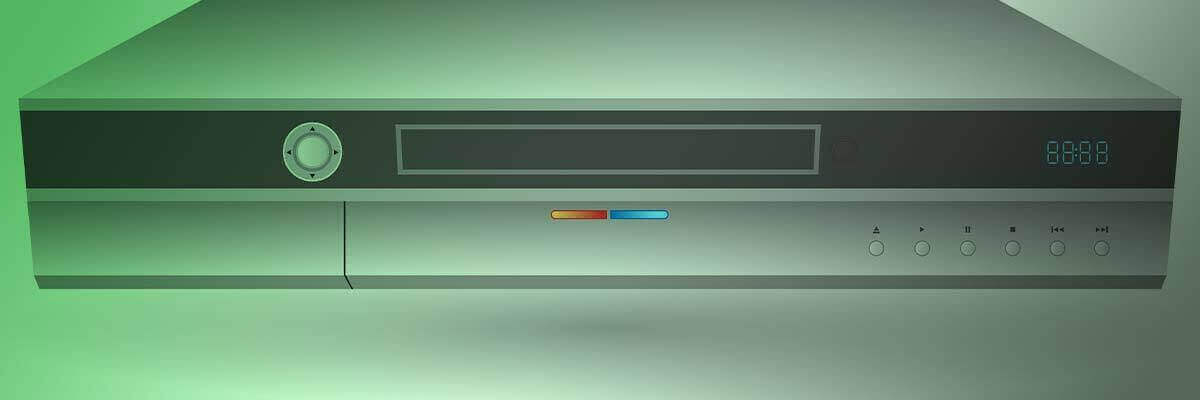
A digital video recorder (DVR) allows you to record shows directly onto a built-in hard drive. DVRs usually come with cable service and give you full control to schedule recordings, pause live TV, and more. Pretty handy!
But you don’t need an expensive cable subscription to get DVR-like functions.
Let’s look at three easy alternatives. After we give you an overview, we’ll go into more detail about each one.
1. Use Video Recording Software
The simplest way to record without a set-top box is to use free software on your computer or laptop. Options like TweakShot allow you to capture video playing on your screen. Just set the program to record, pull up the show you want, and hit play. Now you’ve got your own homemade DVR! Stay tuned for a list of some of the best screen recorders.
2. Record Directly to a USB Device
Another easy method is using a USB drive or external hard disk. Devices like the HDHomeRun CONNECT let you plug in an antenna or cable source and directly record shows to your attached USB storage. In a minute, we’ll tell you how to check if your TV will allow direct recording to a USB.
3. Use MediaPortal to Record to Your PC
For a more advanced setup, check out open-source DVR platforms like MediaPortal. This program lets you schedule recordings on your TV tuner card which then get stored on your computer. It takes a bit more tech know-how but gives you maximum control. We’ll explain how to use MediaPortal in more detail shortly.
Types of Video Recording Software
Learning how to record TV shows without a DVR is much easier when you use video recording software. You can choose from a number of software packages available on the market.
EaseUs RecEXPERTS
Although this program works better with Windows computers, it’s also compatible with Mac products. EaseUs RecEXPERTS offers you a recording function at no cost for great quality TV. And it’s great for both beginners and advanced users.
Key Features
- Compatible with Windows and Mac
- Record streaming video from your PC
- Choose a variety of output formats, like MP4, MOV, and AVI
- Chose full screen, an area of screen, or multi-screens
- Record streaming audio
- Includes Windows or Mac screen recorder
- Schedule any TV recording
TweakShot
The fastest way to capture video on a full screen without a DVR is to use TweakShot. This free program can help you take screenshots of an active window.
This includes live TV or a TV show you want to turn into a recorded file. You can also do some light editing or cropping once you finish recording whatever content you want to save.
Key Features
- Compatible with Windows only
- Offers several video-recording options, such as full screen and active window
- Rotate the image or flip horizontal/vertical
- Record TV shows without a DVR
- Upload any TV recording to cloud storage like Google Drive or DropBox
Wondershare UniConverter
This desktop app is user-friendly and helps you record live TV shows at the drop of a hat. You can record TV shows in full-screen mode or whatever frame dimensions you prefer. This app also allows you to edit recorded content and add voice narrations or annotations with text.
Key Features
- Compatible with Windows and Mac
- Record shows on Mac OS X 10.9+ and Windows 8/7/10
- Convert 4K/8K/HDR videos
- Edit recordings of a TV show by trimming, cropping, or adding subtitles
- Convert TV programs into any format, including MP4, MOV, and MP3

Quicktime Player
Quicktime is the default player that comes with Mac computers. But you can also use this program to record TV shows without a DVR. And it’s free.
The player comes with onscreen controls that are similar to those of a DVD recorder. This makes Quicktime easy to use and familiar to people who might not be too tech-savvy. You can also add notations once you start recording, and you can rotate your video with Quicktime Player.
Key Features
- Compatible with Mac OS X 10.5 or later
- Record audio while you record TV channels
- Save TV programs or videos from the web
- Create full-screen or partial-screen recording
Monosnap
Monosnap has a free non-commercial plan for single users. You can also get more storage space and third-party integrations like Google Drive for only $3/month.
Monosnap acts as a screen recorder. You can either record your TV screen or take a static screenshot. The app also gives you the option to turn on your webcam and mic before you start recording TV shows.
Key Features
- Compatible with Windows and Mac
- Cloud integration makes it ideal for students and professionals
- Highlight important details with text and shapes
- Records in 60fps for an ultra-smooth playback
- Use Blur tool to hide sensitive content
How to Record a TV Show with a USB Stick or USB HDD
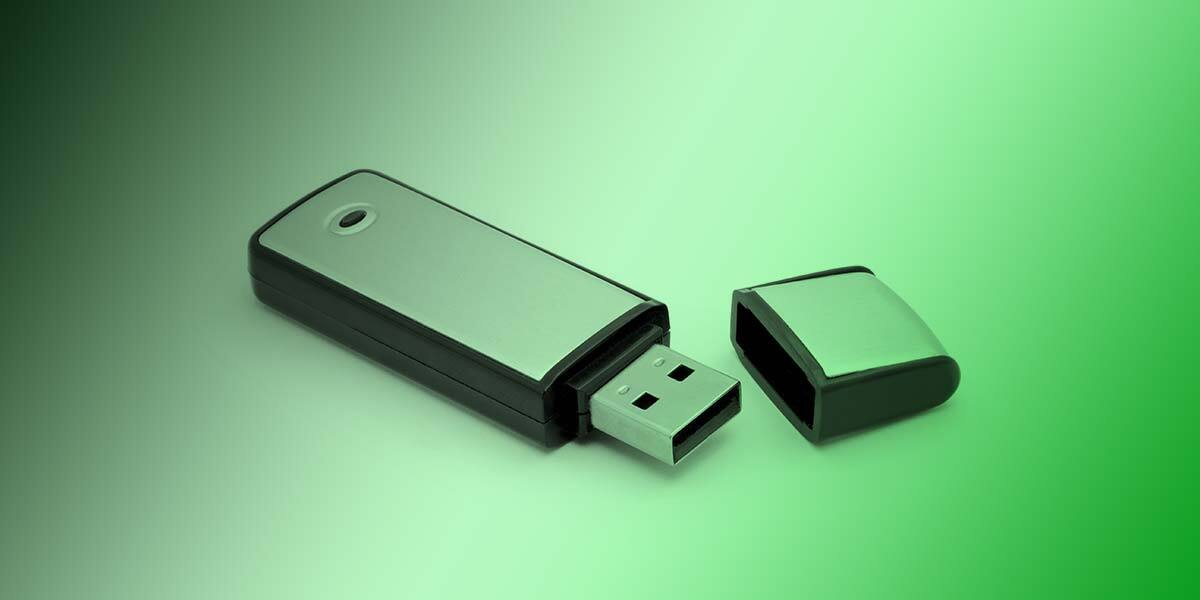
A low-tech way to record TV is to use a USB flash drive. You’ll notice that most TVs come with default PVR software. The PVR software will be useful when you record TV with a USB, as it will help you capture TV shows to an external device.
The main drawback of recording TV with USB is limited recording options. You can only record programs available through your TV’s Freeview. That means that you won’t be able to save programming from any other outlet or streaming service.
Still, if you want to record with a USB, here’s what you do.
Step 1. Before doing anything, make sure that your TV has a USB slot or USB port.
Step 2. Locate the USB slot on the back of the TV. Once you do this, connect the USB HDD to the TV.
Step 3. Once you have connected the USB, check to see if you can access the PVR settings. Depending on the settings of your TV model, you can set the format to HDD and other options for PVR.
Step 4. Now that you know your TV has a PVR built-in option, you can start recording programming.
Please note this method only works if your TV has a personal video recorder option. Otherwise, it won’t work.
How to Record TV Through MediaPortal
MediaPortal is a type of free software that makes it easy for you to connect your PC to your TV. The program offers you one of the best ways to record live TV because of the quality. And it also comes with a remote function to control everything from the comfort of your couch.
To use MediaPortal as a recorder on your TV set, follow the next few steps.
Step 1. Download MediaPortal to your PC. (This product works with Microsoft Windows).
Step 2. Click on the RECORD button when you find the show you want to record. You can start recording while you’re watching the TV show.
Step 3. If you want to set up recordings for later, find the schedule recording feature. This will schedule recordings for future times.

Other Ways to Record TV Shows If You Don’t Have Cable
You can continue recording shows without cable by using any of the methods described in this article to record streaming TV. If you’d rather go traditional, you can get your own DVR box to record live TV. Some options include:
- TiVo Edge for Antenna
- Tablo-Over the-Air (OTA) DVR
- Sling AirTV 2
Getting Your Best Internet Connection for Streaming and Recording
As you can see, one major way to record is with your computer or a computer connected to your TV. To do that, you should make sure your internet connection is high-speed and stable.
Plugging directly in with an Ethernet cable will provide you with your best signal quality. So if you’re having any issues with glitching or buffering, try plugging directly into your modem or router.
If you have DSL or fixed wireless, your internet speed may not be fast enough to handle smooth streaming. Consider taking an internet speed test to determine your real speed.
If your speed is too slow, your current ISP may be able to increase your speed or upgrade your internet plan. If not, you may want to switch internet providers.
Enter your zip code to see which internet providers serve your area.